
Steps on how to create DEB ID with the help of ABC ID ? It is mandatory for IGNOU students.
IGNOU, A++ Grade Accredited by NAAC, The mega University of world having more than 30 million students across the globe.
IGNOU an Open Distance University under the control of Ministry of Education , Govt. Of India is pioneer in Open Distance Learning (ODL) system.
Its degree and diploma and certificate is well recognised.
IGNOU Student Corner is designed with dedicated menu for Fresh Applicant, Old Learners and
many more.

What is DEB ID and ABC ID (APAAR ID).
ABC ID is a 12 digit Unique Student ID. This is also know as APAAR ID. This ID is a permanent identifier to each student, commencing from Class one (1). It can be used for Academic Progress Monitoring purpose. ABC ID facilitate continuous and comprehensive monitoring of students' academic performance from the outset.
All IGNOU student from July 2024 batch onward must create DEB - ID and ABC ID. This is needed while filling the IGNOU Exam form also. Creating DEB ID is mandatory for all student who want to take admission for Open Distance Learning (ODL) or Online (OL) Programme. DEB -ID stands for Distance Education Bureau - ID.
It can be created easily by DigiLocker App in your mobile.
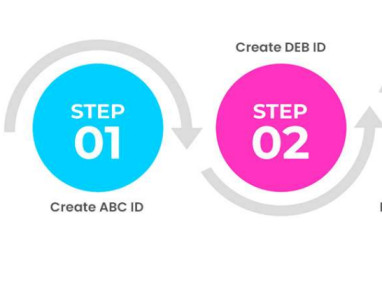
Steps on how to create ABC ID and DEB ID.
To Create DEB - ID student need ABC ID. This is mandatory for all IGNOU student who want to take Admission in IGNOU. Below is the step to create ABC ID and then DEB-ID
ABC ID can be create in three way. You can choose any one.
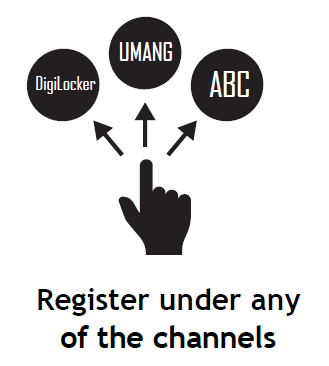
-
ABC - ID creation via DigiLocker Website ( https://www.digilocker.gov.in )
-
ABC - ID creation via UMANG Website (https://web.umang.gov.in/landing/ )
-
ABC - ID creation via ABC Website ( https://www.abc.gov.in )
ABC ID creation via Google Play Store APP IS a straightforward approach and the simplest one. This may take maximum 5 minutes to Create or Fetch your ABC ID. This ABC-ID is also called APAAR ID. Steps with Mobile Screen shot for creating DEB -ID is given below.
Step 01:
Go to Google Play store search for DigiLocker app then install it.
After installing App from Google Play store you need to Select Language
Click on “Skip” tutorial. Tap or Click no Left most top Icon on Digilocker App Screen. If you don’t have account Click “Create Account”.
Step 02 :
In the next screen Enter your Full Name, Enter Date of Birth, Gender, Mobile Number, Email, Set your 6 Digit Security Password. Click on Submit button.
It will ask for OTP for mobile number verification – Enter OTP.
Step 03 :
Next screen you will be asked to Verify Your Identity with AADHAR Number for ABC ID Creation.
Enter your Aadhar number and verify your identity . Now your Digilocker account creation done .
Step 04 :
Next step will create your ABC ID
Click on Sign-In. Enter your mobile number or Aadhar number to login – Enter your recently created 6 DIGIT PIN. Click on Sign -in . Once you're logged in, Click on search button and then type APAAR for searching then click on APPAR ID.
Step : 05
In next screen you'll find a form that already contains your Name, Date of Birth, and Gender pre-populated (pre-filled). Next, choose the Admission year, your Identity Type, Enter your Identity value, and select your Academic Institution from the provided drop-down list.
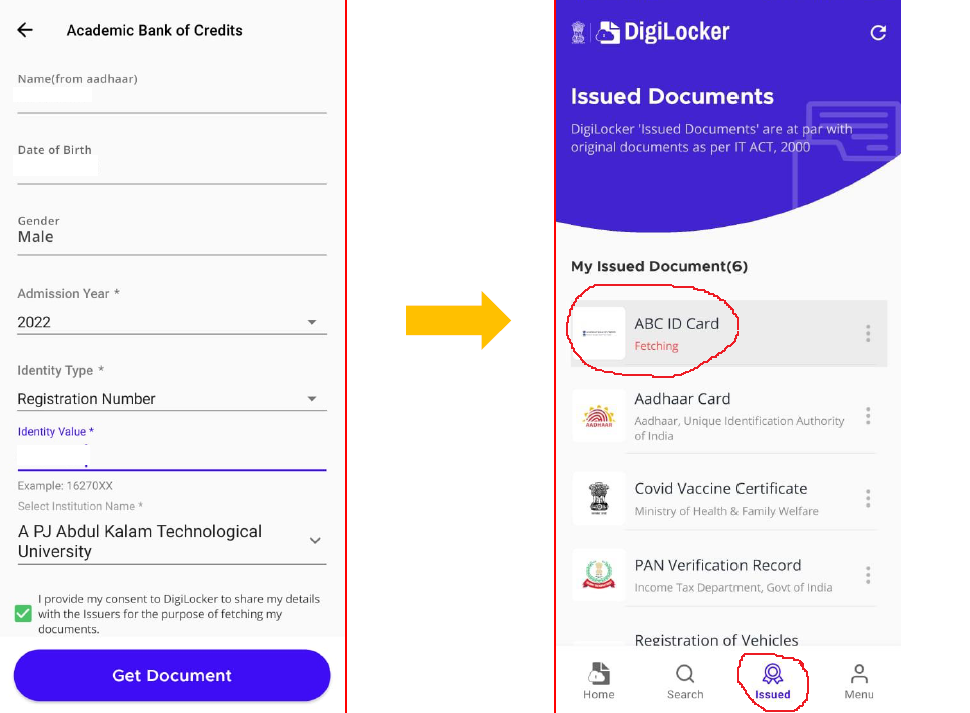
Step 06:
To complete the process, simply click the "Get Document" button, and you'll witness your ABC ID being generated or fetched as shown in the second screenshot.
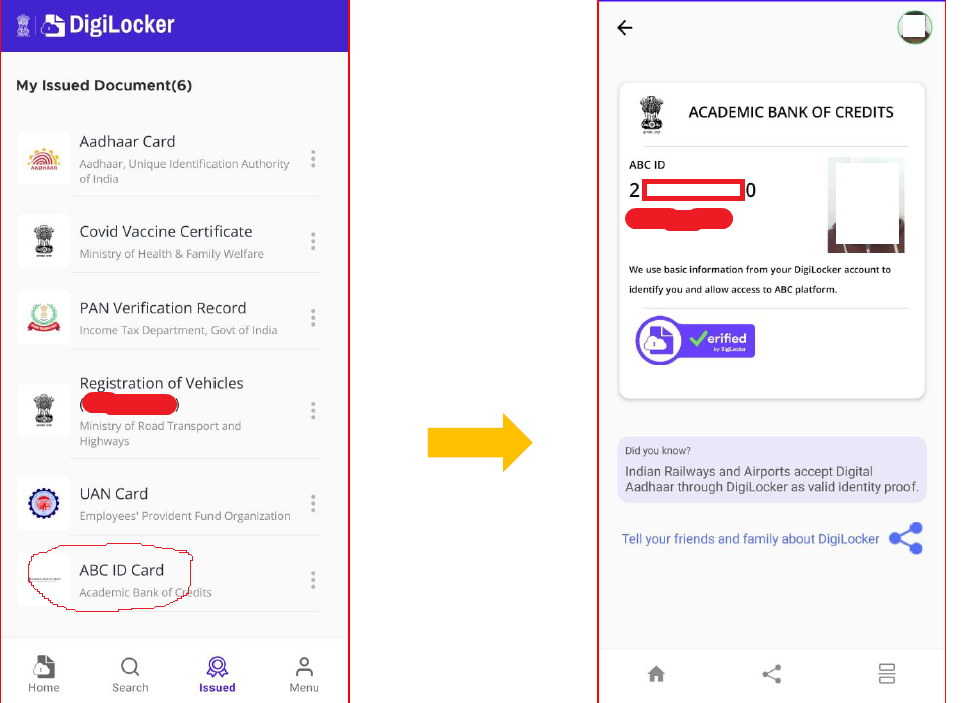
Step 07:
After the ABC ID is successfully created or fetched, you can locate it under the "My Issued Documents" section. To view your ABC ID, simply click on the three dots located on the right side of the entry.
Steps to create DEB -ID for IGNOU all other students
The DEB-id Can be create in simple few steps.
1. Visit the UGC DEB portal . ( https://deb.ugc.ac.in/StudentDEBId )
2. You will find a form for DEB-ID creation
3. Enter your ABC ID (Created at above steps)
4. Enter Your name as per Adhar Card
5. Enter "Year of Birth".
6. Select "Gender".
7. Click on "Self" box for consent field. This will automatically fetch your data and the remaining form will be filled automatically. Here " Provider name" is the name of Candidate. Enter the captcha code and submit.
In the next page enter you Mobile and Email Id and submit . Your DEB-ID will be generated.
Finished.
8. In case consent given by other or Agent you need to follow further steps
8 a.Select any "Provider Authentication Mode" . This is required for Identity proof , you may select UID (Adhar card )
8 b. As per above Point ( 8 a ) selection give the number. Here in this example you need to enter ABC ID (as the case may be).
8 c. Enter Consent Relation and place. Then submit the form
In the next page enter you Mobile and Email Id and submit . Your DEB-ID will be generated.
Finished.
 Subscribe YouTube Channel
Join Telegram Channel
Join Telegram Student Group
Subscribe YouTube Channel
Join Telegram Channel
Join Telegram Student Group



 Check IGNOU Grade Card Status
IGNOU Assignment Submission Status
IGNOU Convocation
Know Your IGNOU RC Update in Pandemic
IGNOU Class and Practical schedule
Send Message / Date wise News
Check IGNOU Grade Card Status
IGNOU Assignment Submission Status
IGNOU Convocation
Know Your IGNOU RC Update in Pandemic
IGNOU Class and Practical schedule
Send Message / Date wise News
|
IGNOU Important Links with Last Dates. |
|
|
|
 Join Group!
IGNOUstudentCorner.com @2024-25. All rights reserved.